Introduction
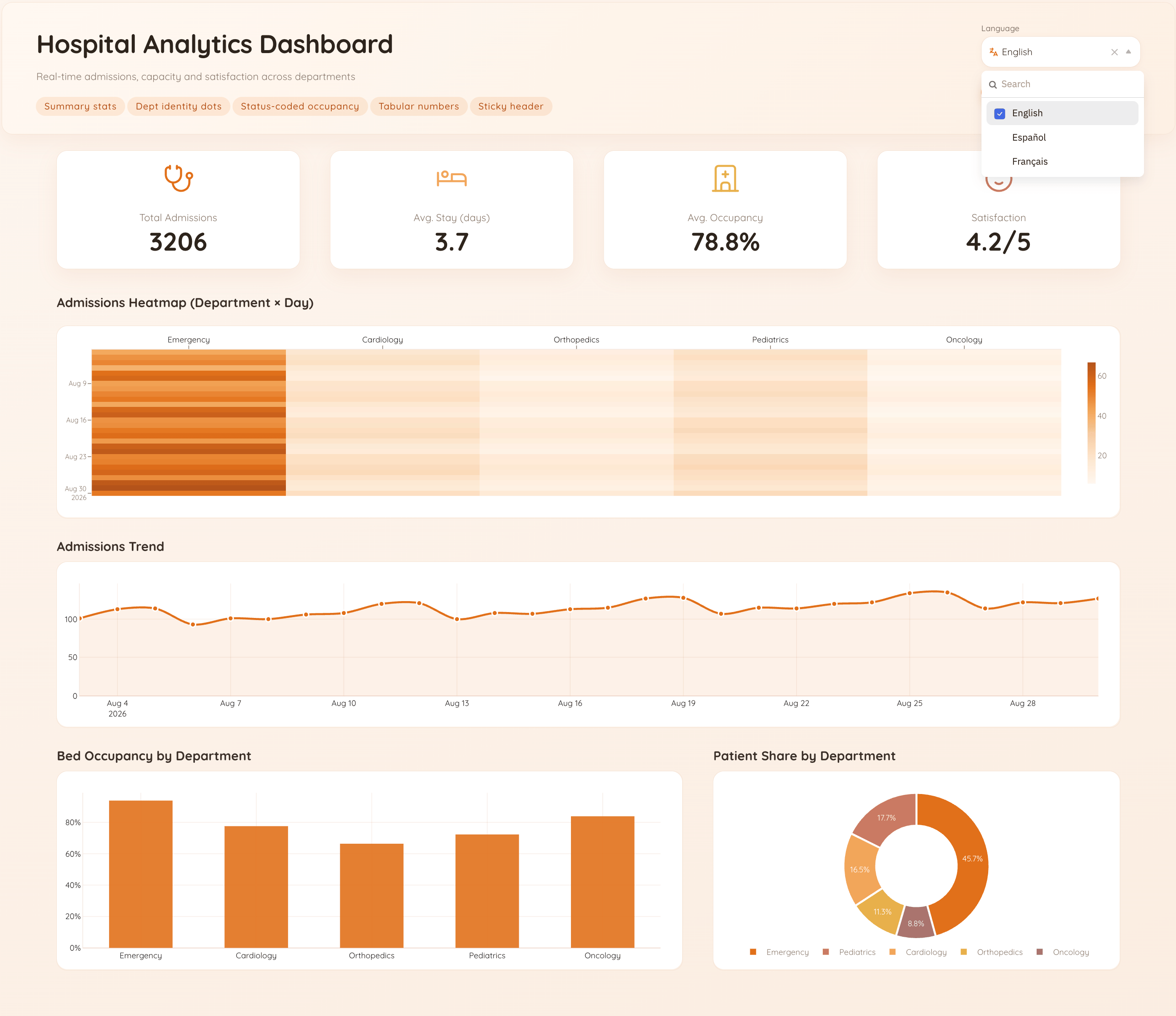
Hospital administrators need one place to watch admissions and departmental activity, and this tutorial shows how to build a hospital analytics dashboard with ToolJet MCP. The agent generates a structured ToolJet application, so the data, queries and interface travel together as one app, not as a screen or a code drop. You get a trilingual operations dashboard you can read as a single workspace, with admissions data feeding the charts, the label set changing with the selected language, and the heatmap showing where activity concentrates. The walkthrough points you at the finished result first, then the pieces underneath it, so the prompt in this article can be reused without guessing the shape of the app.
English

French

Spanish
What We’re Building
The page uses a compact operations layout, with a KPI row at the top and a chart grid beneath it. The header keeps a language selector visible while the titles and captions update in place, so the same layout speaks English, Spanish or French without cloning the page. One chart is a heatmap, and the admissions matrix only works once the series is shaped to match the component. The rest of the grid gives the admissions view enough context to read trends without leaving the screen, which keeps the layout dense and easy to scan. That means the user can switch languages, inspect the KPI tiles, and compare departmental activity in one pass instead of moving between separate views.
- Admissions data reads from ToolJet DB
- Translated labels switch between English, Spanish and French
- Four KPI tiles sit above the chart grid
- A heatmap shows admissions by department and day
- Validation and seeded rows confirm the dashboard works on load
Build a Hospital Analytics Dashboard with ToolJet MCP and Adapt the Charts
Want to build it yourself? Start with the ToolJet MCP repository for setup instructions, supported agents, and everything you need to follow along.
The Consolidated Build Prompt
The real build took several passes, and the requirements are consolidated here into one prompt that could have been used from the start. You can use the prompt in this article to reproduce the same hospital operations dashboard in a single shot.
Build a hospital operations analytics dashboard in ToolJet, on ToolJet DB, for hospital administrators who need one screen for admissions and departmental activity.
Store admissions records with a department, an admission date and a patient count, and seed them with realistic demo data across several departments and weeks so every chart has something to show on load. Keep a separate table holding the interface labels for each supported language.
Use three queries: one that reads the admissions rows, one RunJS query that reshapes them into the series each chart needs including a department-by-day matrix for the heatmap, and one RunJS query that returns the label set for the currently selected language.
Lay out a single page: a KPI row of four statistic tiles, then a grid of four charts inside two containers, one of which is a heatmap of admissions by department and day. Put a language selector in the header offering English, Spanish and French.
Selecting a language must re-render every heading, axis title and tile caption from the label query, without reloading the page and without duplicating the layout per language. The heatmap must render actual cells rather than only axes, so shape the series to whatever the chart component expects before binding it.
Aim for a dense enterprise operations screen: restrained colour, tight spacing, clear type hierarchy, readable at a glance. Run the app validation and confirm the queries return seeded rows before finishing.ur text goes here
How ToolJet MCP Builds the App
ToolJet MCP works through the whole application, not the visible layer, so the data model, queries, pages, components and wiring land together as one structured ToolJet application. That matters because the job does not end at the interface, the dashboard still depends on data connectivity, workflow logic and later change, and the generated app stays on the runtime that carries those where supported instead of handing you a codebase to run yourself. From there, you can keep moving between AI generation, visual editing and code when the shape of the data needs it.
The One Thing That Broke
The heatmap showed its axes but no cells, so the admissions view looked empty even though the chart frame was present. The series shape did not match the chart’s expectation, and reshaping the computed dataset made the department by day grid render correctly.
Data Created
The app ended up with two tables. hospital_admissions stores admissions records by department and date, and translations holds the label set for each supported language. The first table feeds the charts and the second drives the live text swap in the header and KPI captions.
What Got Generated
The results table shows the validation state and the query checks that confirmed the seeded admissions rows and the working language logic.
| Metric | Result |
|---|---|
| Components | 19 |
| Queries | 3 |
| Repair cycles | 1 |
| Final validation | 0 errors |

The components ToolJet MCP created, in the ToolJet inspector
Final Takeaways
This build shows that a hospital operations dashboard can come out of one prompt as a structured app, with live label switching, reshaped chart data and a heatmap that renders real cells. Once generation ends, the useful artifact is the application itself, because you keep working in ToolJet instead of taking ownership of a code bundle. Visual editing covers routine layout changes, code handles the edge cases, and the data layer stays attached to the interface as the requirements change. That is the part that matters, since the dashboard keeps its data and its presentation aligned while the team keeps iterating.
Try ToolJet MCP
Build your own hospital operations dashboard from admissions data. Start free on ToolJet Cloud.