What Is an Incident Command Center?
Your service desk still runs on an inbox nobody can triage in time. Build an incident command center with ToolJet MCP and you turn that queue into a structured ToolJet application, where data, queries and interface stay together while agents keep working the live record. By the end, you see how the console tracks open, unassigned and critical incidents, handles assignment and work notes, watches SLA risk, and gives the team one place for problems, knowledge articles and trends.
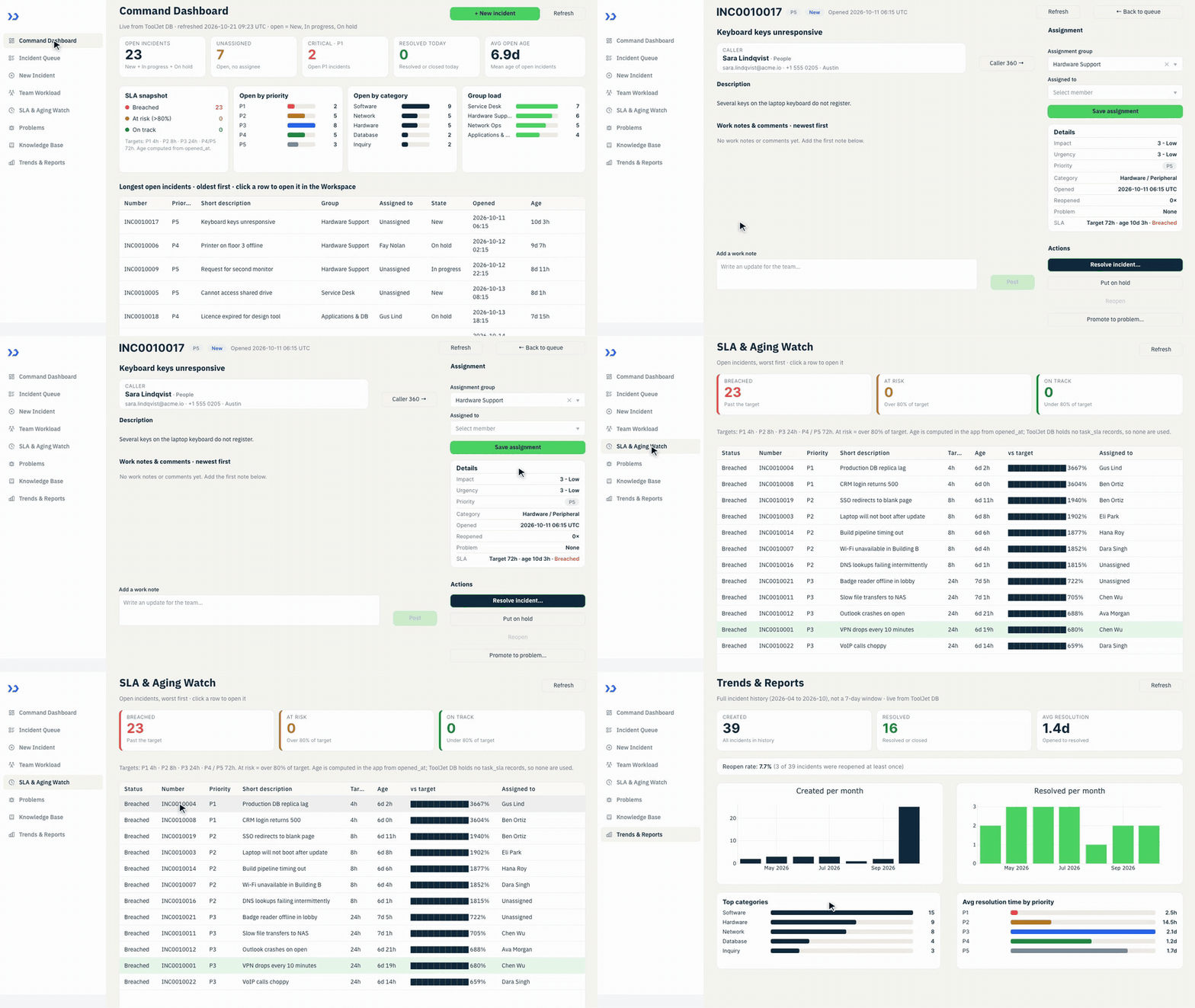
One ticket from the dashboard to the reports: open the oldest incident, check who is carrying the load, watch the SLA clock and review the monthly trends.
How Do You Triage Incidents Fast?
Triage incidents by routing each case through a queue, updating the record, and keeping notes, assignments, and follow-up work in one place. ToolJet MCP lets a coding agent build that workflow as a working app, and the ToolJet MCP link in this article points to the build path.
- Open the incident queue and filter by urgency
- Select the record that needs attention
- Review caller details, notes, and SLA timing
- Assign the incident, add work notes, or hold it
- Resolve the case or promote it to a problem
How Does The Console Work On Screen?
The console starts with a dashboard that surfaces open, unassigned and critical incidents, then sends you into the right record from the longest-open table. The queue narrows the list with filters for state, priority, group, category and search, while the workspace keeps the incident header, notes timeline, assignment rail and action buttons in one place. The rest of the screens turn the same data into operator views for caller history, team workload, SLA ageing, problem tracking, knowledge lookup and trend review.
- Queue views sorted by priority and age with filters for state, group, category and search
- Workspace actions for notes, assignment, hold, resolve, reopen and problem promotion
- New incident entry with caller lookup and computed priority from impact and urgency
- Team workload and SLA views that expose balance, breaches and ageing
- Knowledge base and trends pages for search, reference and reporting
Build An Incident Command Center With ToolJet MCP Pages
Want to build it yourself? Start with the ToolJet MCP repository for setup instructions, supported agents, and everything you need to follow along.
What Is The Consolidated Prompt Behind The Build?
The build took several passes to settle the model, page wiring and write paths. The prompt in this article condenses those requirements into one version you can use from the start and reproduce in a single shot.
Build a ten-page Incident Command Center in ToolJet for an IT service desk.
Use only native ToolJet components and a slightly larger base font. Use ToolJet Database as the only datasource, with list rows for reads and RunJS for computed logic. Use a warm, clean, information-dense visual style with deep navy headings, green primary actions, a warm canvas, white cards with light borders, muted text, and status colours for red, amber, green and blue.
Use eight ToolJet Database tables: ic_incidents, ic_users, ic_groups, ic_members, ic_problems, ic_kb, ic_hardware and ic_choices. Seed realistic incidents, callers, groups, hardware, problems and knowledge articles. Drive category, subcategory, impact, urgency and close code from ic_choices, never hardcoded. Never store priority as typed data, derive it from impact and urgency with the 3×3 matrix.
Pages should cover the command dashboard, incident queue, hidden workspace, new incident form, hidden caller 360 view, team workload, SLA and aging watch, problems, knowledge base, and trends and reports. The dashboard shows the main KPIs, SLA snapshot, load breakdowns and a longest-open table. The queue supports filtering and row open. The workspace supports assignment, notes, hold, resolve, reopen, and promote to problem. New incident computes priority and shows the matrix. Team workload includes bulk assign. Problems, knowledge base and trends use linked records and history views.
Every page loads from one data model built in a single loader, and every successful write reloads the page the same way. Hidden pages redirect when they are opened without the right record. Keep destructive actions behind confirmation modals, keep the sidebar expanded, keep every table inside its pane, and do not let content scroll inside cards, forms or modals except the long work-notes timeline.
How Did MCP Assemble The App?
ToolJet MCP works through the data model, pages, components, queries and wiring as one structured ToolJet application, so the service desk console lands inside ToolJet rather than as a codebase you still have to assemble. In this build, the incident queue, workspace, workload views and write actions all stay connected to the same live tables, and the runtime carries the data connectivity, workflows, permissions, deployment and ongoing change where supported. You can still move from AI generation to visual editing to code where a case needs it, and the ToolJet MCP documentation shows the setup path.
Which SQL Reads Failed During The Build?
The first pass left the pages empty because SQL reads were blocked in the workspace. The fix was to rebuild each read as a ToolJet Database list-row query, which let the dashboard, queue and workspaces load from the same seeded data.
What Did ToolJet MCP Generate?
| Metric | Result |
|---|---|
| Pages | 10 |
| ToolJet DB tables | 8 |
| Queries | 28 |
| Components | 149 |
| Code files to maintain | 0 |
| Repair cycles | 1 |
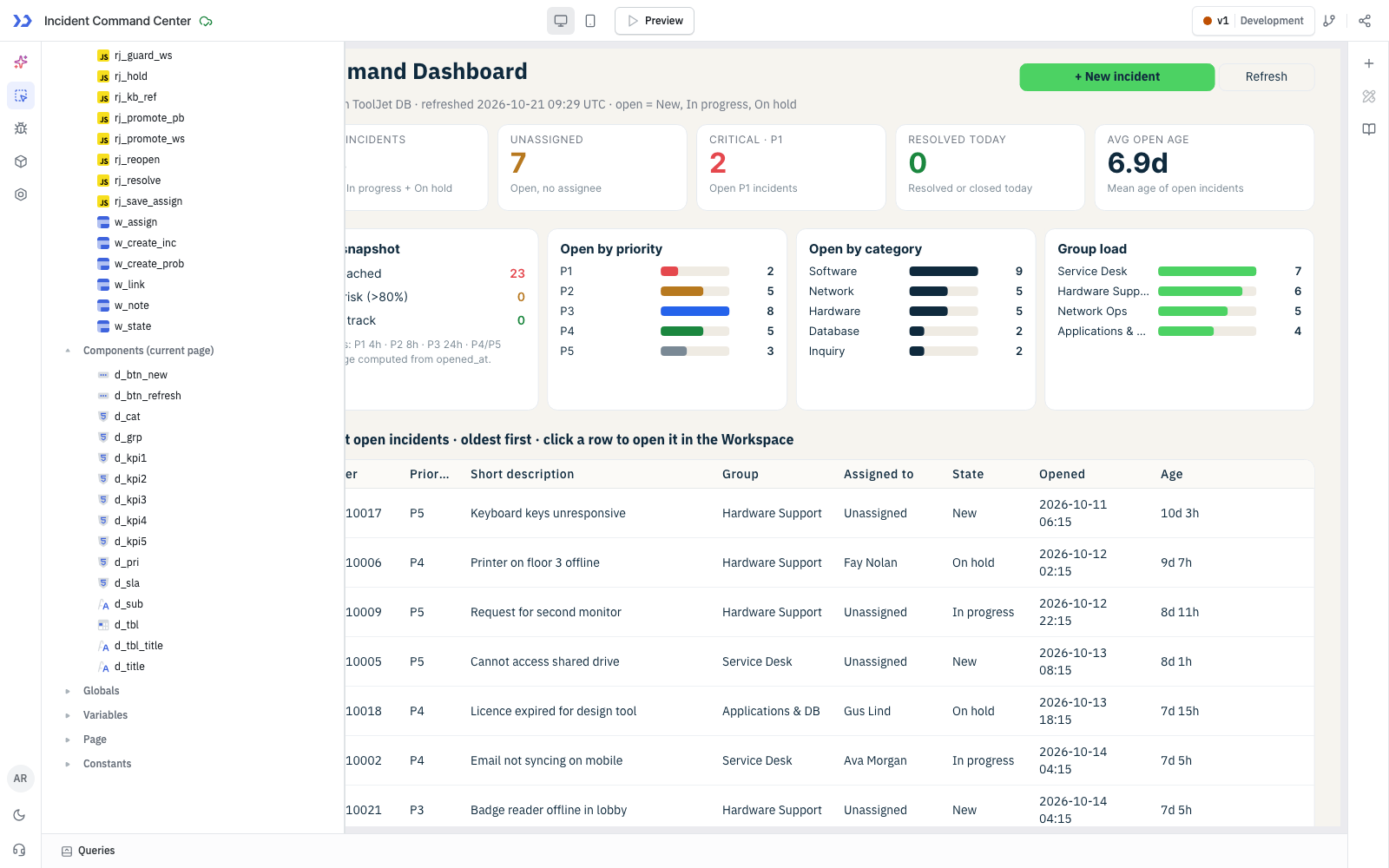
The components ToolJet MCP created, in the ToolJet inspector
Which Teams Use Incident Operations?
IT service desks, internal IT and helpdesk teams, managed service providers and any operations team that triages tickets against response targets.
Who Can Access The Console?
The app has no role or group permissions as built: anyone with access to the app can use every page and every action, including resolving, reopening and bulk assignment. Per-role access (for example read-only viewers or agent-only writes) was not configured and would be added with ToolJet workspace groups.
Single Sign-On and SCIM User Provisioning in ToolJet
An Incident Command Center app should use the company login your team already has, and ToolJet supports single sign-on (SSO) through SAML, OpenID Connect (OIDC) and LDAP, plus SCIM 2.0 for automated user provisioning. People sign in with their identity provider account, and access follows your directory instead of a separate password list.
When incident handlers join or leave the team, their access should follow the directory instead of being updated page by page. SSO and SCIM keep that alignment in one place for the people who run this console.

Single Sign-On and SCIM User Provisioning in ToolJet
SSO Protocols: SAML, OIDC and LDAP
Workspace admins turn each method on under Workspace settings > Workspace login, as described in the ToolJet SSO overview:
- SAML single sign-on: connect providers such as Okta, Active Directory Federation Services, Auth0 or Azure AD by pasting your identity provider metadata, with optional group sync from a group attribute.
- OpenID Connect: use Azure AD, Google or Okta with the Authorization Code or Authorization Code with PKCE grant, configured per workspace or for the whole instance. On the Enterprise plan you can set up multiple OIDC providers side by side, and users pick theirs on the sign-in page.
- LDAP authentication: sign users in against your directory server using Base DN search, CN or UPN usernames, optional SSL certificates and group sync on every login.
Automated Provisioning with SCIM 2.0
- SCIM user and group provisioning: connect Okta, Azure AD, OneLogin or another identity provider to create users when they join, update names, emails and role mappings in real time, and archive users as soon as access is revoked.
- Server-side setup: SCIM is switched on with environment variables on your ToolJet deployment and accepts Bearer token or Basic authentication.
With SSO and SCIM in place, onboarding and offboarding for the Incident Command Center app happen in your identity provider rather than by hand. SAML, OIDC and LDAP are available from the Team plan, and SCIM provisioning is part of the ToolJet Enterprise plan.
Enterprise Features for Your Incident Command Center
An incident command center handles incident records, caller contact details, and work notes. ToolJet covers that governance at the platform layer, so you configure it once instead of rebuilding it in every app.
- SSO and SCIM: sign in with SAML, OIDC or LDAP, and provision users automatically
- Role-based access control: scope permissions to the app, the data source, and each query
- Audit logs: track every login, edit, and approval decision for compliance review
- Air-gapped deployment: self-host on Docker or Kubernetes so your data stays in your network
- Multiplayer editing: several builders work on the same app, with versioning and Git sync
- ToolJet AI inside your own deployment: run the AI features in your tenancy rather than a shared service
You could add it with ToolJet Workflows. For example, a workflow could fire when a critical incident is resolved, post a summary to the team in Slack, email the caller through Gmail, and write the outcome back to ic_incidents.
Final Takeaways
This incident command center shows a live service-desk workflow built from one prompt and backed by ToolJet Database tables. You see the dashboard, queue, workspace, workload view, SLA watch, problems, knowledge articles and trend pages all reading from the same records, with priority derived from impact and urgency and write actions tied back to the incident. The main problem it solves is the split between inbox triage and structured incident handling. Building an incident command center with ToolJet MCP gives you a real ToolJet application the team can keep editing as the process changes.
Build your own with ToolJet MCP
Build your own incident command center from live service-desk data, then request a ToolJet demo. Start free on ToolJet Cloud.