Attach a Figma PNG to ToolJet AI Builder, paste one prompt, and it builds a working React Builder app that follows the design. ToolJet’s Security panel then lists what to review, and Fix with AI resolves a finding in the same tool. This guide builds a five-page Data Review & Correction Console and fixes its access finding.
What does the app do?
A customer data team fixes bad records from Salesforce, NetSuite, SAP, Shopify and Zendesk in spreadsheets, so nobody can say who changed a credit limit or who approved it. The app replaces that with five pages: a review board, a case file, team health, a change ledger and intake. Data lives in ToolJet Database. Low-severity fixes apply directly, and everything else needs an approver other than the author.
How do you build a ToolJet app from a Figma design?
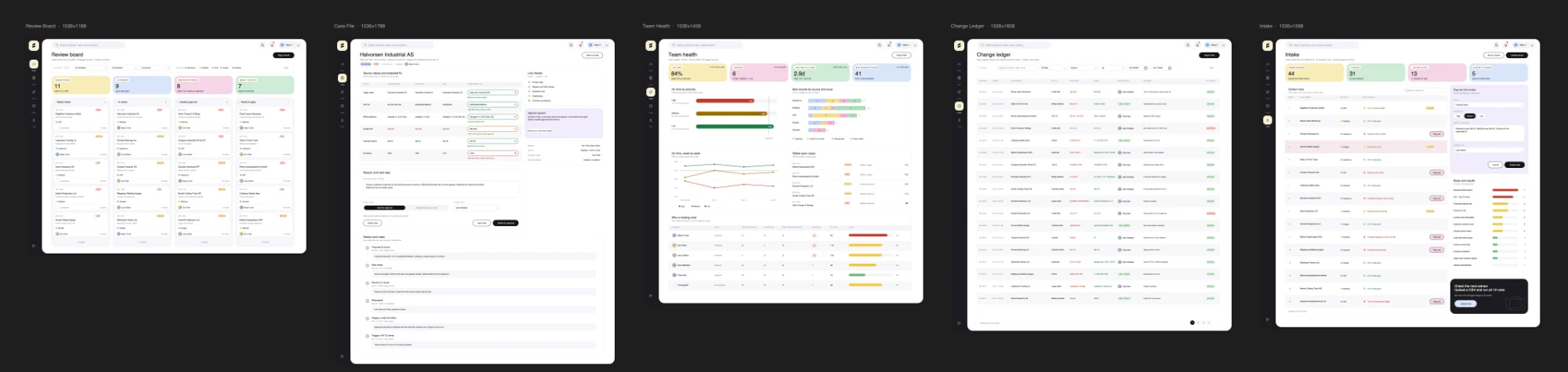
Export the Figma frames as one PNG, attach it to the AI Builder chat, and paste this prompt. The last line keeps the build faithful to the design.
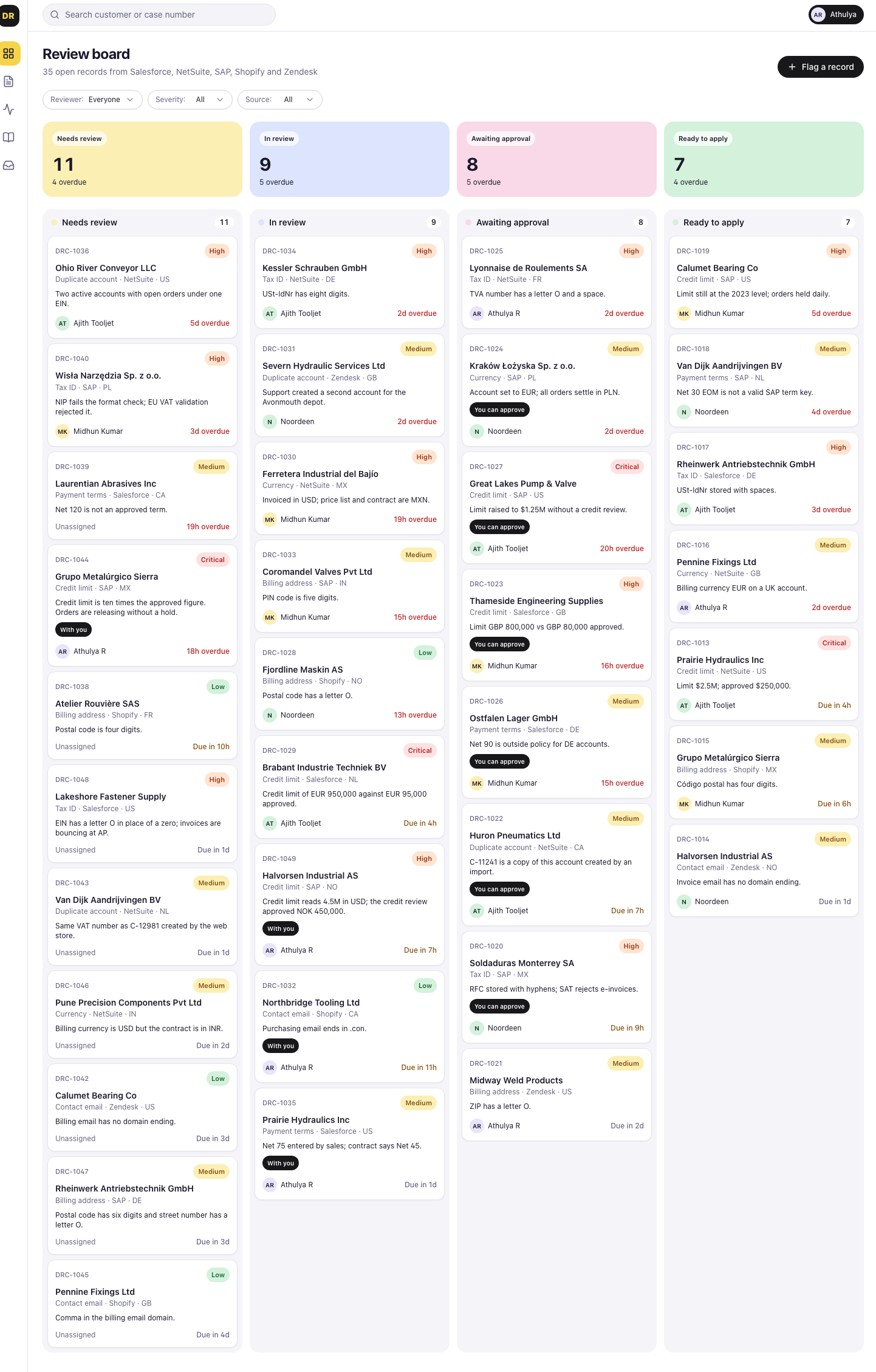
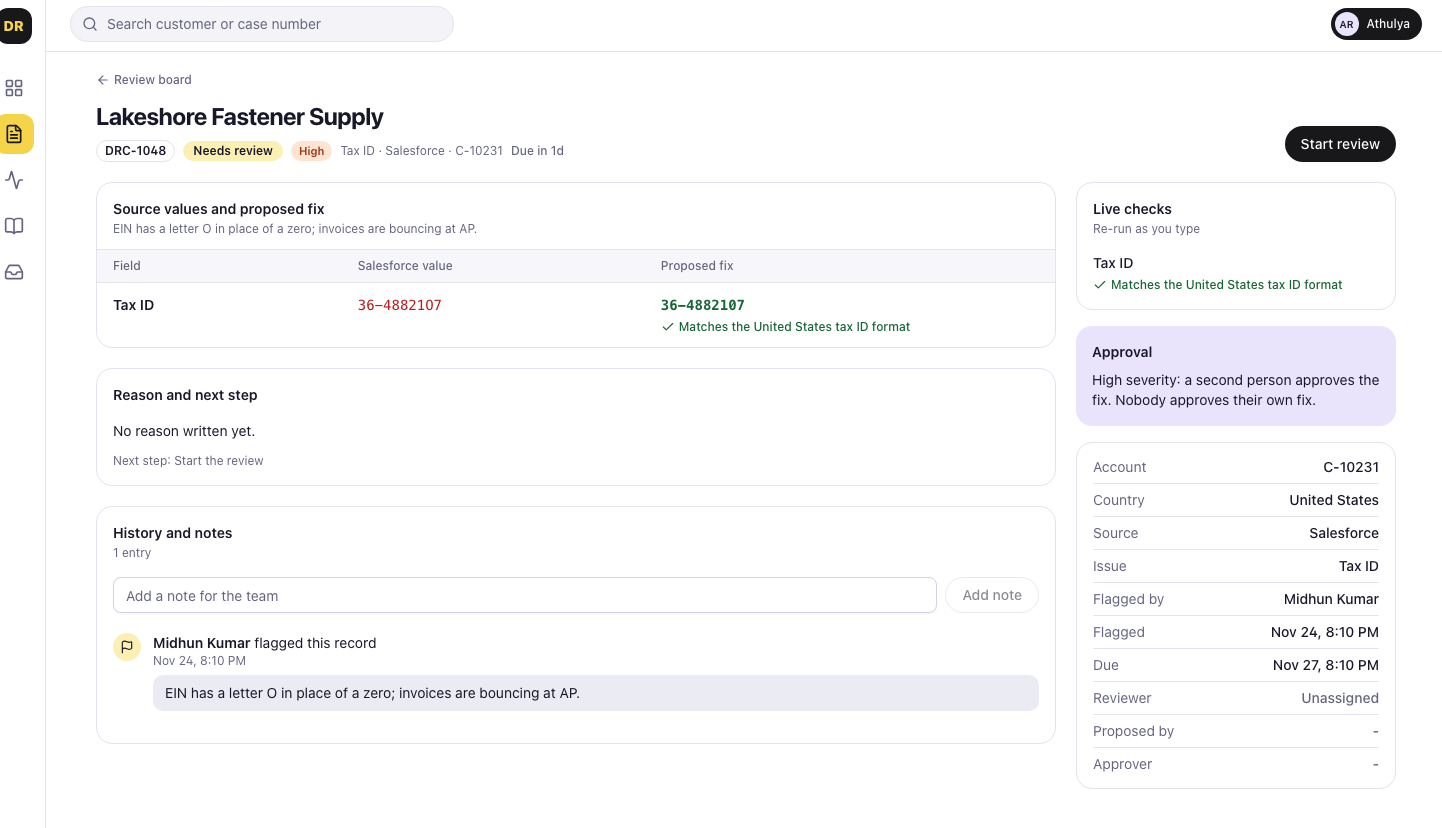
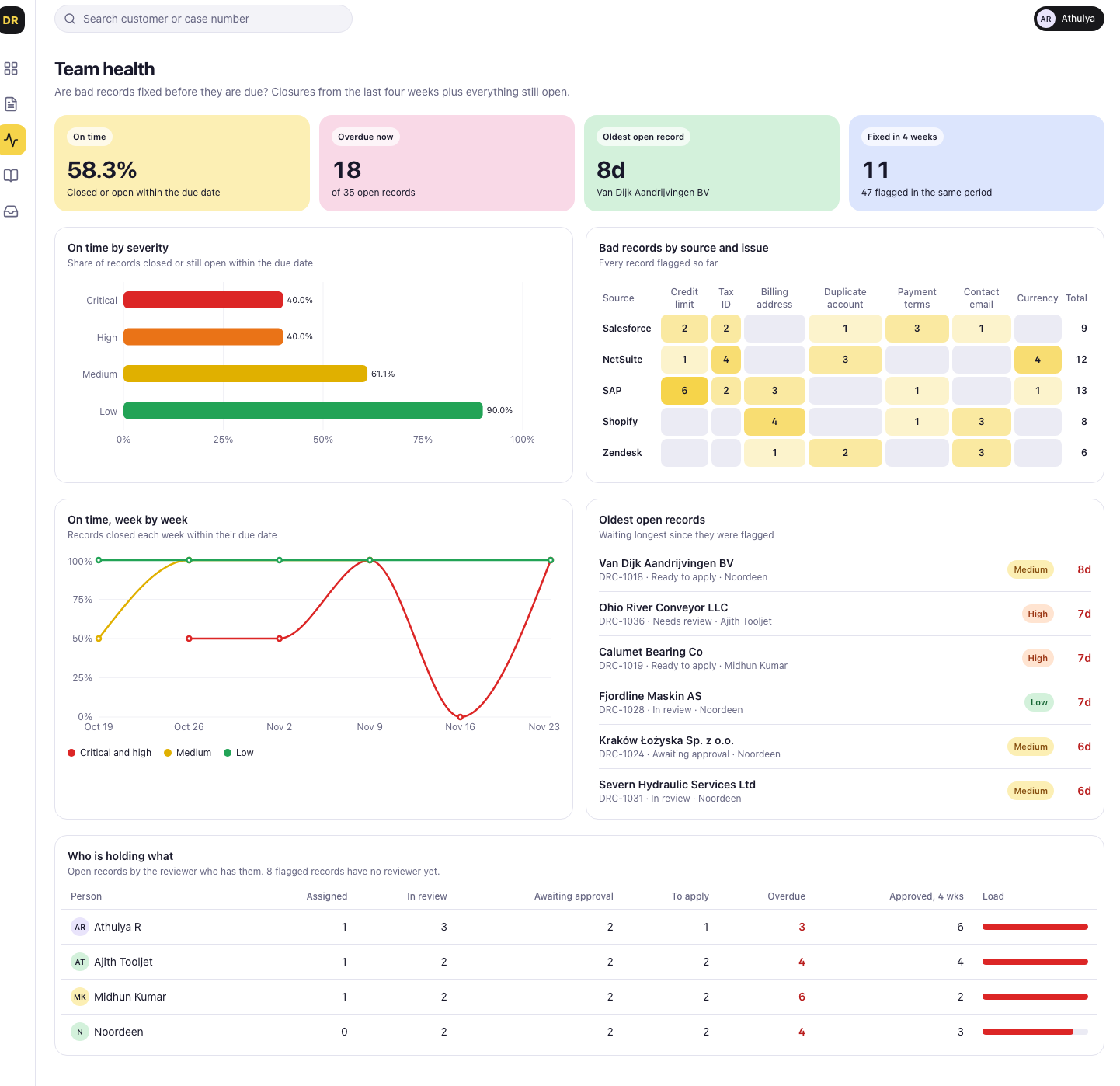
Build a 5-page ToolJet app called Data Review & Correction Console for my customer data team. We are an industrial supplies distributor in Chicago with about 3,000 business customers in ten countries, and today bad customer records from Salesforce, NetSuite, SAP, Shopify and Zendesk get fixed in spreadsheets, so nobody can say who changed a credit limit, why, or whether anyone approved it. The datasource is already connected: ToolJet DB, for everything the app records. Until we connect the warehouse, use a sample of 44 customer rows from the latest extract. Page one is a board with lanes for needs review, in review, awaiting approval and ready to apply, filtered by reviewer, severity and source. Page two is the case file for one record: source values next to the proposed fix, live checks as you type, a reason, the next step and the full history with notes. Page three shows whether the team is keeping up: on time by severity, bad records by source and issue, and who is holding what. Page four is a ledger of every change with original and final values, who decided and why, with CSV export. Page five is intake: the latest extract checked against our rules, where anyone can flag a bad row. Seed about 35 flagged records in every state, with fixes, notes and four weeks of history. Low-severity fixes apply directly; everything else needs an approver, and nobody approves their own fix. Test the main flow end to end in the viewer before you report done. use the attached design only, match exactly as in the file
AI Builder finished in 27 steps and about 39 minutes, using 22 credits. It was upfront about one gap: it could not open the viewer, so the end-to-end flow you asked it to test was not clicked through. Everything it seeded sits in the Development environment, so Staging and Production start empty.
The finished pages. The first three are full length, and the last two are cropped to the top of the page:
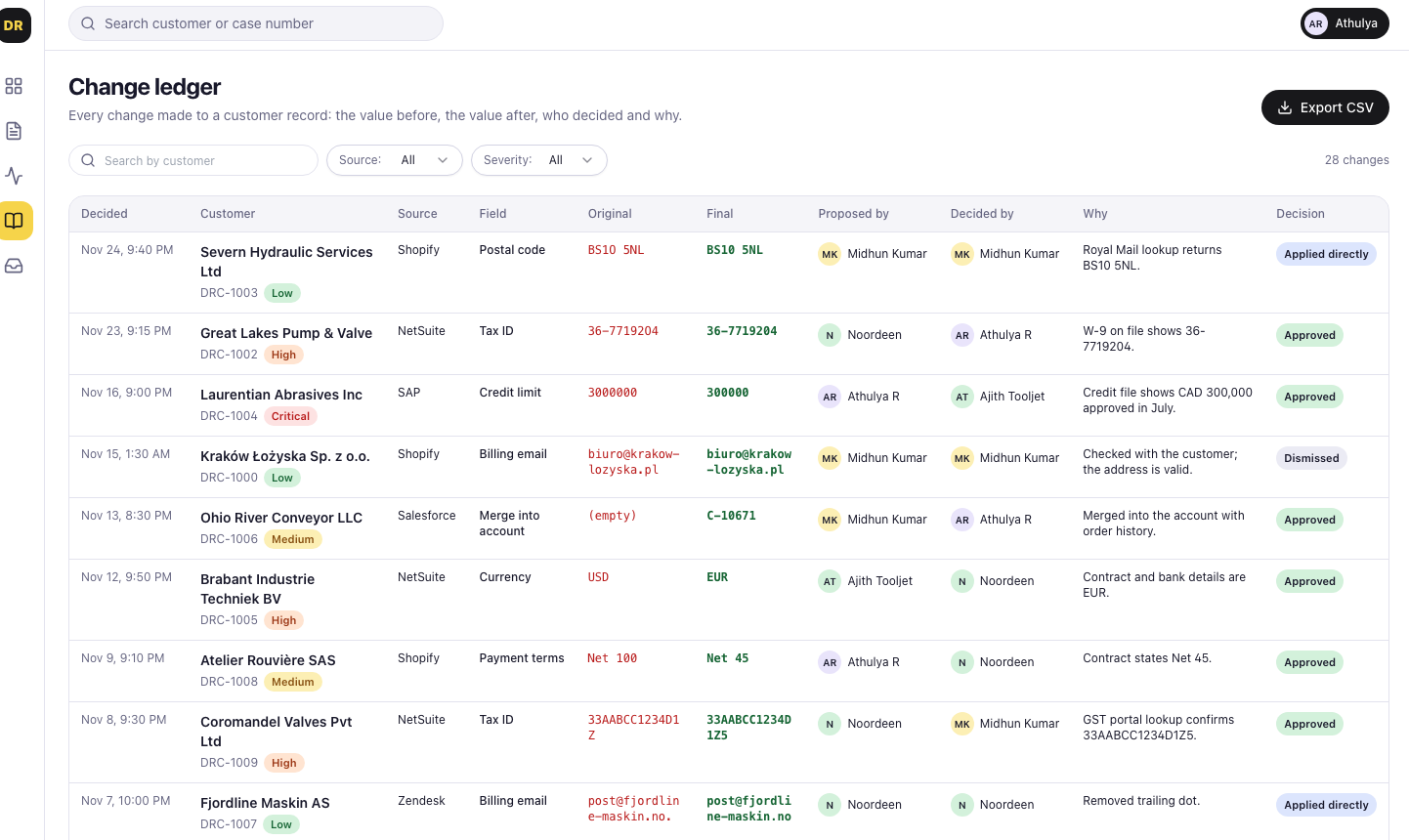
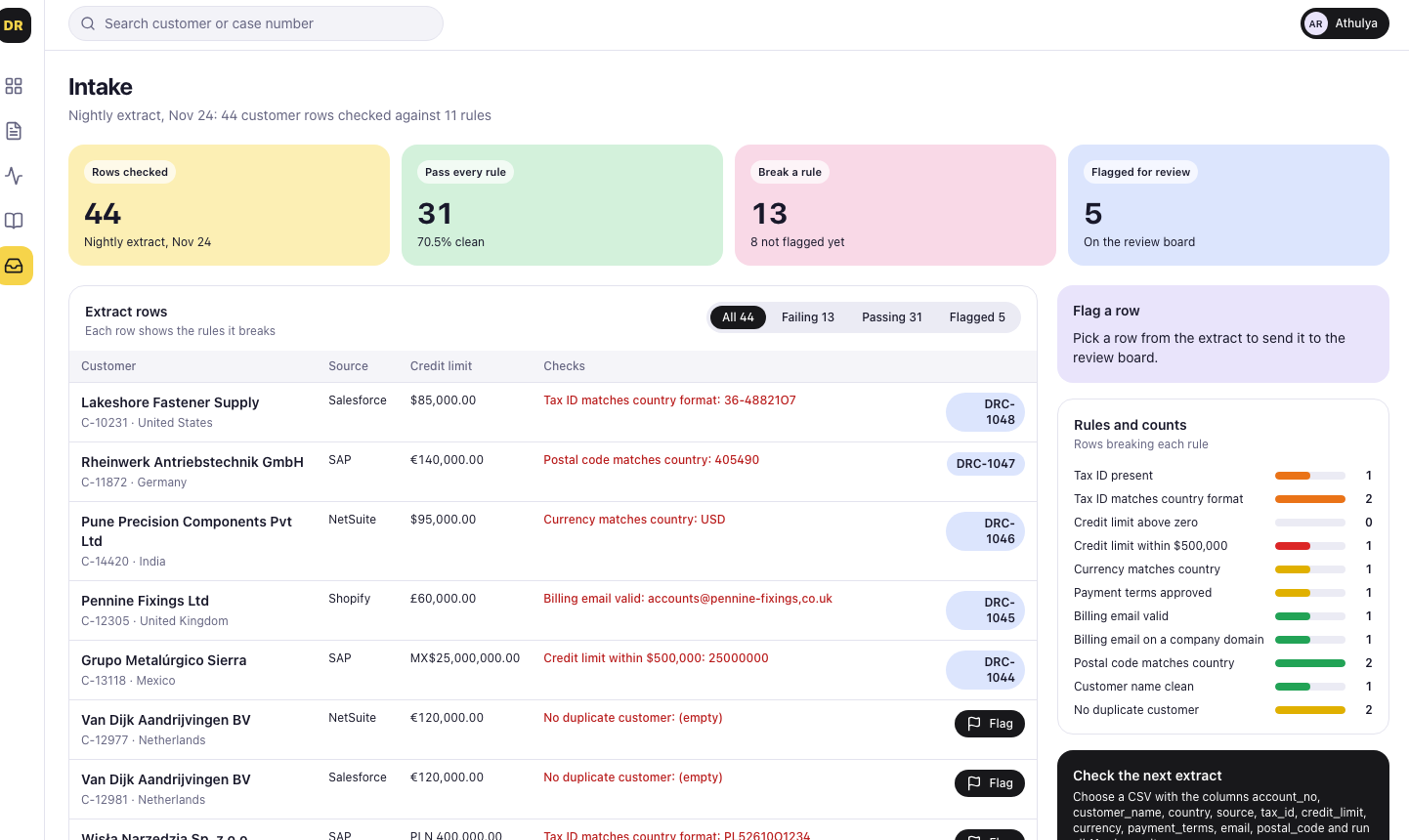
[CONFIRM: say where the build differs from the Figma frames.]
How does security scanning work in ToolJet React Builder?
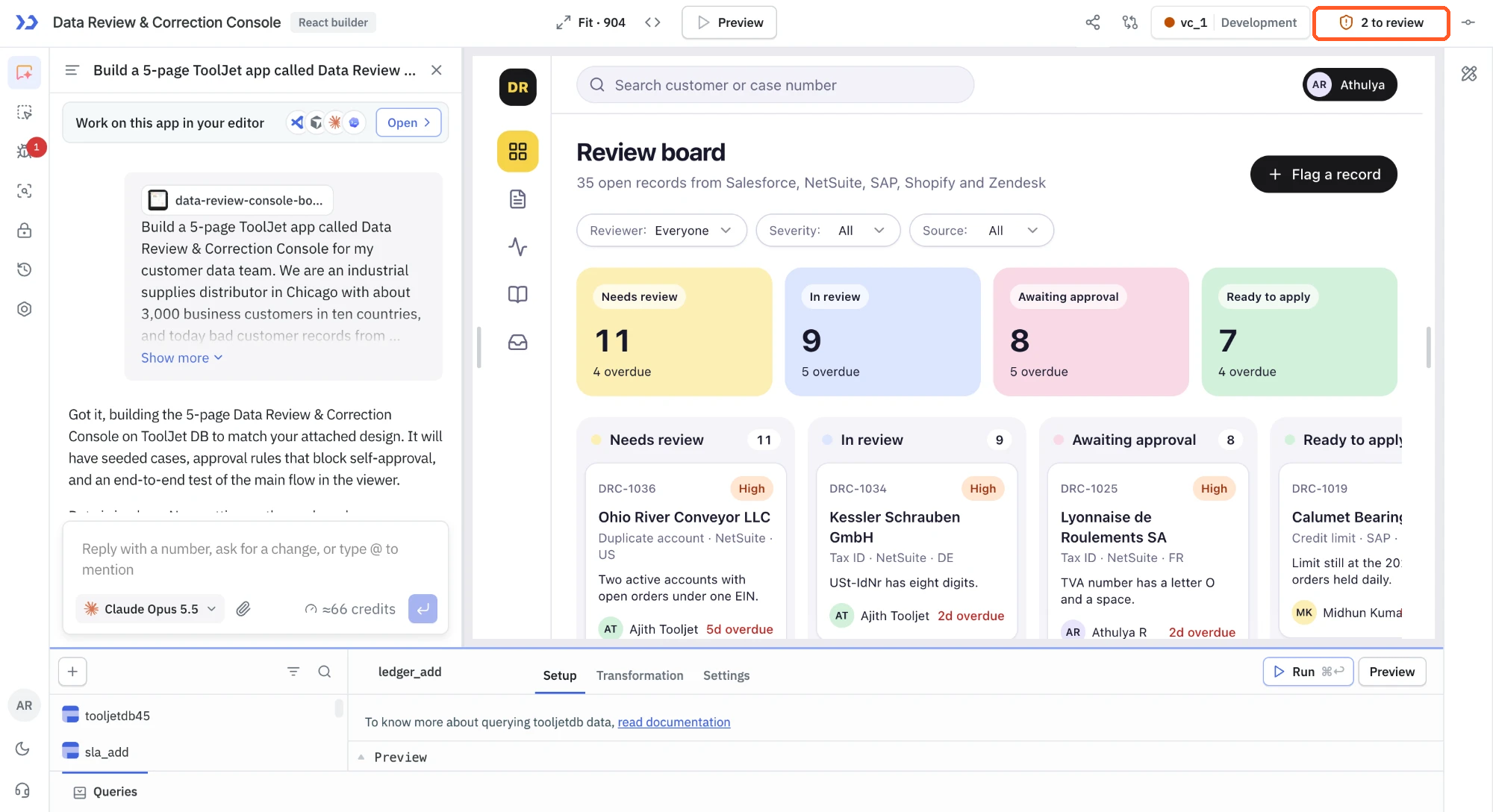
Because React Builder produces a real React and TypeScript app, ToolJet can scan it like a code review. Open the Security panel from the shield button in the builder’s top bar, which shows the number of issues to review. It lists each issue with a Limit queries or Fix with AI action. ToolJet’s React Builder page also describes dependency scans, with scheduled scans and organization-wide policies listed as Enterprise. A clean scan is one input, not a sign-off: still test authorization and business logic.
What does the Security panel find?
This build showed “2 issues to review” and “Nothing blocks release”, with no package issues. “Nothing blocks release” means the open findings are for review and are not blocking.
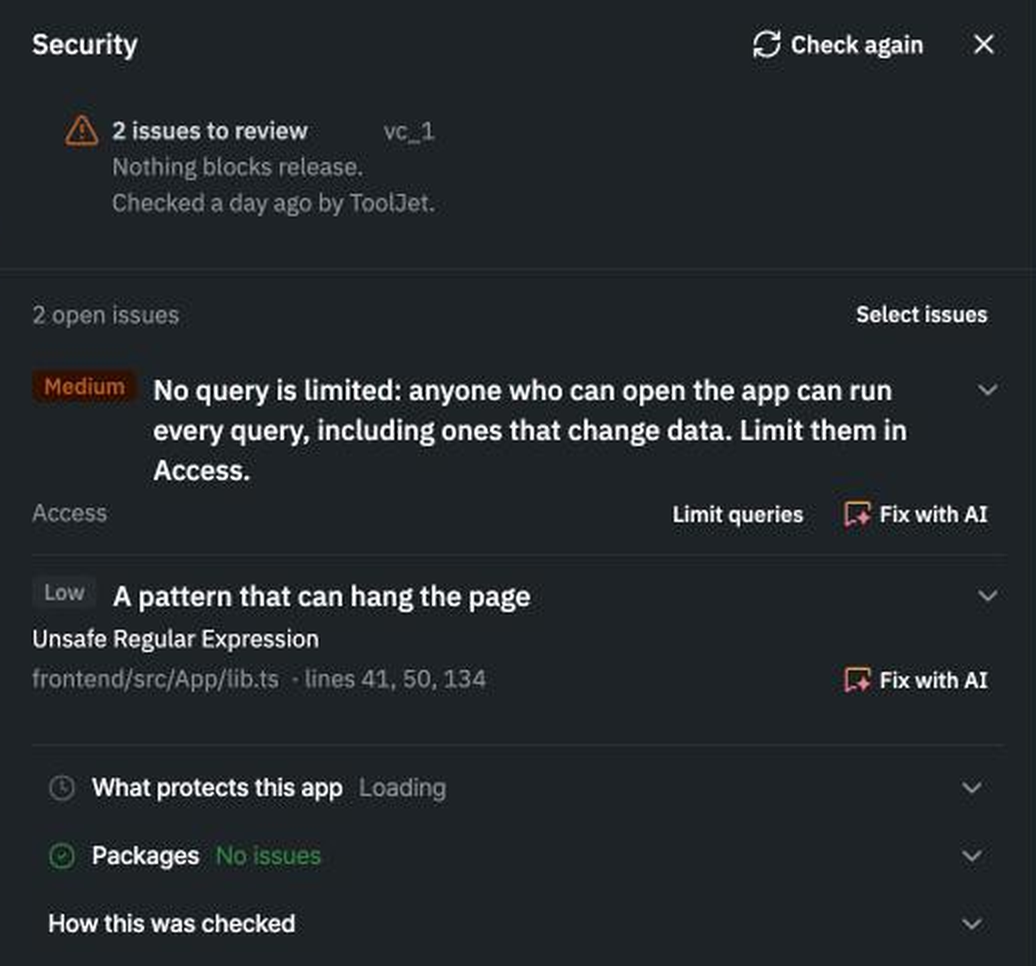
The one that matters here is the Medium finding: no query is limited. Anyone who can open the app can run every query (a saved database call), including ones that change data. Hiding a button does not stop someone running the query behind it. ToolJet leaves queries open by default, so this is a setting you have not switched on, not a build mistake. AI Builder said as much in its summary: it set no limits because the prompt named no roles or groups.
How do you create permissions with ToolJet to limit queries?
Limit queries opens the Access panel. It has two lists: who can open each screen, and who can run each query. A restricted query is refused by ToolJet’s server for anyone outside its groups, whatever the screen shows. ToolJet’s docs list query permissions as an Enterprise feature, so check your plan first. By default, every screen and all 44 queries are open to Everyone.
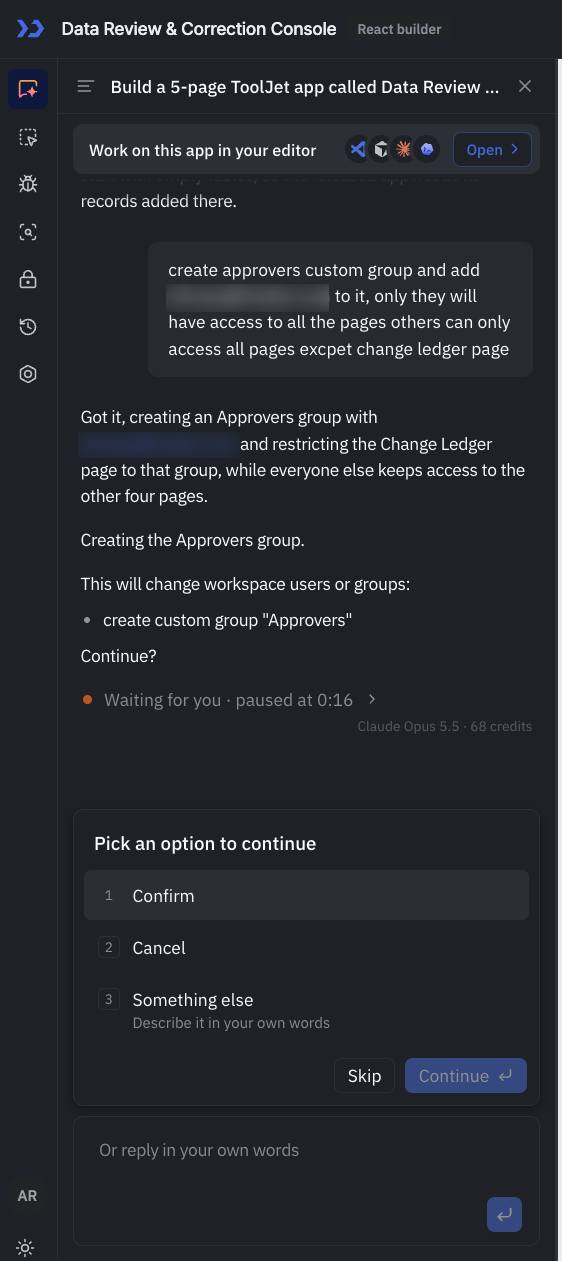
You can stay in AI Builder. Ask it to create the group and restrict the page:
Create an Approvers custom group and add my email address to it. Only they get the Change ledger page. Everyone else keeps the other four pages.
AI Builder asks you to confirm each workspace change, first creating the group and then adding the member.
Test it with a second user
We tested with another workspace user who was not in Approvers. They could still open the Change ledger. AI Builder explained why: that user is a builder, and ToolJet shows a builder every page of an app they can edit. Page limits hide pages from people who cannot edit the app. To keep a builder out, change their role to end-user or remove their edit access to the app.
Limit the queries with Fix with AI
AI Builder had also warned that limiting the page does not protect the data behind it: the ledger’s list, count and CSV export stayed open. Click Fix with AI on the Medium finding. ToolJet explains what happens first: the AI changes the app’s code, the code is checked again, you can see each change in the chat and undo it from the app’s version history, and it uses AI credits.
In one minute and 8 steps (48 credits) it limited six actions to Approvers: approve, send back, apply, and the ledger’s list, count and CSV export.
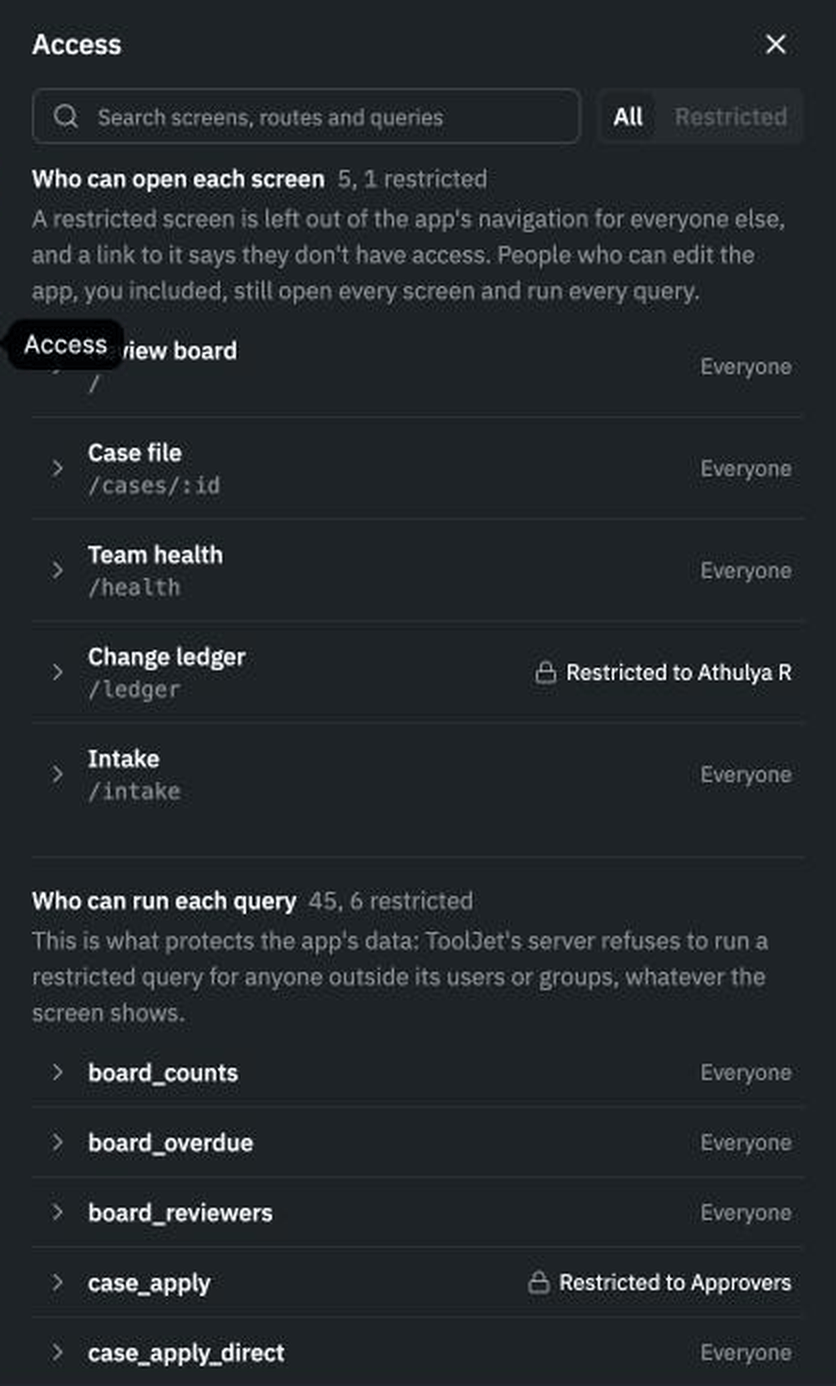
AI Builder was candid about two limits. It had not tested the screens as a non-approver, so someone outside Approvers may still see the approve buttons and get an error when they click. And the fix needs one more release before the warning can clear. Click Check again to see what is left.
Can an app with open findings be released?
Each finding gives you two routes: fix it, or accept it. To fix it, use Fix with AI or edit the code by hand, then click Check again. To accept it, a workspace admin clicks Add exception and answers “Why is this acceptable?”. The reason is kept in the audit trail, and the exception can cover one app or every app in the workspace, with an optional expiry date.
Workspace admins also set a release policy under Workspace settings, App security. When a version fails it, the release and promote dialogs show “Blocks release” with the number of issues and lock the confirm button. Someone with release permission can still use Release anyway, but it needs a stated reason that is recorded in the audit trail. So a failing app is never released by accident: it is fixed, accepted with a reason, or overridden on the record. These checks cover React Builder apps only.